11 Terminal Commands You Should Know
The terminal is a powerful tool that allows users to interact with their computers and perform tasks directly by typing in text commands. Using the terminal can significantly improve productivity for many tasks, especially those that involve repetitive actions or the manipulation of large numbers of files.
In this article, we will introduce some of the most important and commonly used commands, discuss the benefits of using terminal commands and look at examples of how these commands can streamline various tasks and improve efficiency.
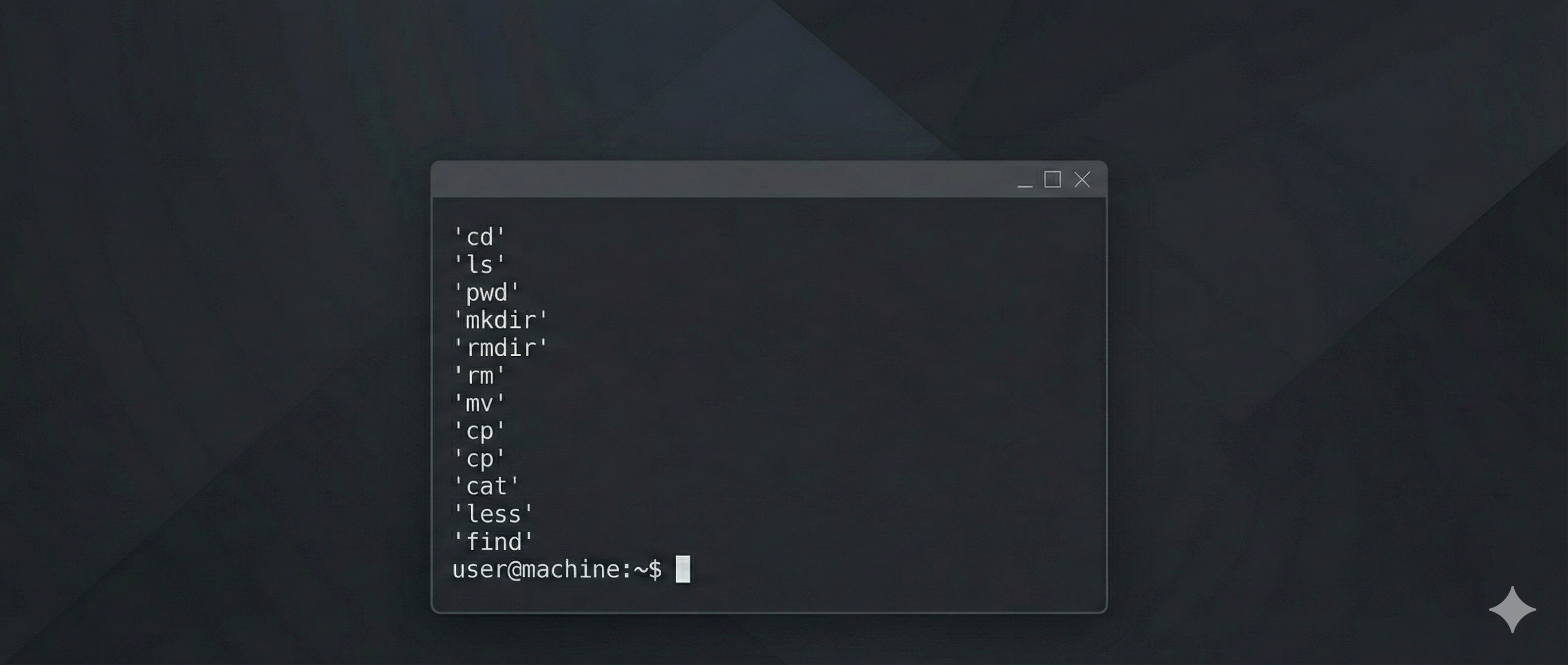
11 important terminal commands
- The
cdcommand. - The
lscommand. - The
pwdcommand. - The
mkdircommand. - The
rmdircommand. - The
rmcommand. - The
mvcommand. - The
cpcommand. - The
catcommand. - The
lesscommand. - The
findcommand.
1. The cd command
The cd command is used to change the current working directory (which is why it’s called cd) and navigate across the file directory of the host machine.
$ cd <path-to-dir>
When cd is executed without a directory, it puts the user in their home directory. In other words, cd is equivalent to cd ~.
Likewise, cd .. will move the user up one directory. So, if the current working directory is /home/username/dir_a/subdir_a, a cd .. will get us to /home/username/dir_a.
2. The ls command
The ls command is used to list files and directories under a specific path, or the current working directory whenever a path is not provided.
$ ls

Desktop  Downloads  Templates  index.html  Videos
The -l option can be used to show the size, last modified date-time as well as directory/file ownership and permissions.
$ ls -l

total 12
-rw-r--r--. 1 root root   789 Feb 19 09:59 Desktop
-rw-r--r--. 1 root root  6797 Aug 31 11:17 Downloads
drwxr-xr-x. 2 root root  2354 Sep 31 12:48 Templates
-rw-r--r--. 2 root root   123 Jun 31 23:48 index.html
drwxr-xr-x. 4 root root  7896 Jul 16 22:55 Videos
Apart from normal files or directories, the ls command can be used to show hidden files too. Hidden files start with a dot (.) prefix. To include such files in the output of ls, you’ll have to provide the -a flag:
$ ls -la

total 12
-rw-r--r--. 1 root root   789 Feb 19 08:49 .gitignore
-rw-r--r--. 1 root root   789 Feb 19 09:59 Desktop
-rw-r--r--. 1 root root  6797 Aug 31 11:17 Downloads
drwxr-xr-x. 2 root root  2354 Sep 31 12:48 Templates
-rw-r--r--. 2 root root   123 Jun 31 23:48 index.html
drwxr-xr-x. 4 root root  7896 Jul 16 22:55 Videos
3. The pwd command
The pwd command stands for print working directory, and as the name suggests, it is used to print out the absolute path to the current directory.
$ cd ~/Documents
$ pwd
/Users/username/Documents
4. The mkdir command
The mkdir command can be used to create new directories on the file system. When a relative path is provided, the newly created directory will be created under the current working directory.
$ mkdir projects
In order to create a directory with one or more sub-directories, you’ll have to provide the -p option:
$ mkdir -p projects/first_project
Furthermore, when running the mkdir command, you may also wish to specify a set of permissions for the newly created directory. For example, the following command will create a new directory called projects under the current working directory with full read, write and execute permissions for all users:
$ mkdir -m777 projects5. The rmdir command
In contrast to mkdir, the rmdir command is used to remove empty directories from the file system:
$ rmdir projects
If the projects directory is non-empty, however, the above command will fail with an error such as:
rmdir: failed to remove 'projects': Directory not empty6. The rm command
To remove non-empty directories along with their sub-directories and files, you’ll have to run the rm command with the -r and -f flags:
$ rm -rf projects7. The mv command
The mv command is used to move directories or files from one place in the file system to another.
The following command will move the file picture.png that currently resides in the ~/Downloads directory into the ~/Documents/Photography/ directory:
$ mv ~/Downloads/picture.png ~/Documents/Photography/picture.png8. The cp command
If, instead of moving directories or files, you would like to create a copy of them, the cp command is your friend.
$ cp ~/Downloads/picture.png ~/Documents/Photography
If you’d like to copy a whole directory and its content instead, make sure to include the -R flag:
$ cp -R ~/Projects ~/Documents/Projects
Note that the folder name does not end with a slash, which would change how cp copies the folder.
9. The cat command
The cat (concatenate) command is used to read data from a specified file and print the output.
Assume we have a Python script called hello_world.py with the following content:
print('Hello World')
The cat command will print its content to the standard output:
$ cat hello_world.py
print('Hello World')
You can even print the line numbers for every row observed in the file by providing the -n argument:
$ cat -n hello_world.py
1 print('Hello World')
2
Note, however, that the cat command usually concatenates the content of multiple files. You can provide several files as input to the command, as shown below:
$ cat file1.txt file2.txt10. The less command
The less command is a terminal pager that outputs the content of the specified file one screen at a time. Therefore, this command is useful when it comes to inspecting the content of large files, such as logs.
$ less run-2022-12-12.log11. The find command
Finally, the find command can be used to search for files on the file system. Let’s suppose that we want to find where exactly a file called my_file.txt resides on the file system. To do so, we can specify the / path (that corresponds to the home directory, meaning that we would like find to start searching for that file from the top directory), and then specify the filename in the -name argument:
$ find / -name 'my_file.txt'We can even specify wildcards in order to find, for example, all CSV files on the file system:
$ find / -name '*.csv'Final thoughts
In conclusion, the terminal is a powerful tool that allows users to interact with their computer in an efficient and automated way. The commands above can be used to streamline various tasks and improve efficiency. Understanding how to take advantage of these commands can help users to perform their tasks more efficiently and much quicker than performing the same action through a graphical interface.
These are just a few examples of the many terminal commands that are available. It is always a good idea to consult the documentation for more information on specific commands and their options.
Text adapted from article “11 Terminal Commands You Should Know”.